06. Create an IAM Role
Create an IAM Role
Here, you'll create an IAM role that you will later attach to your Redshift cluster to enable your cluster to load data from Amazon S3 buckets. Read more about IAM roles and Redshift here.
- Once you have signed into the AWS management console, navigate to the IAM service dashboard.
- In the left navigation pane, choose Roles.
- Choose Create role.
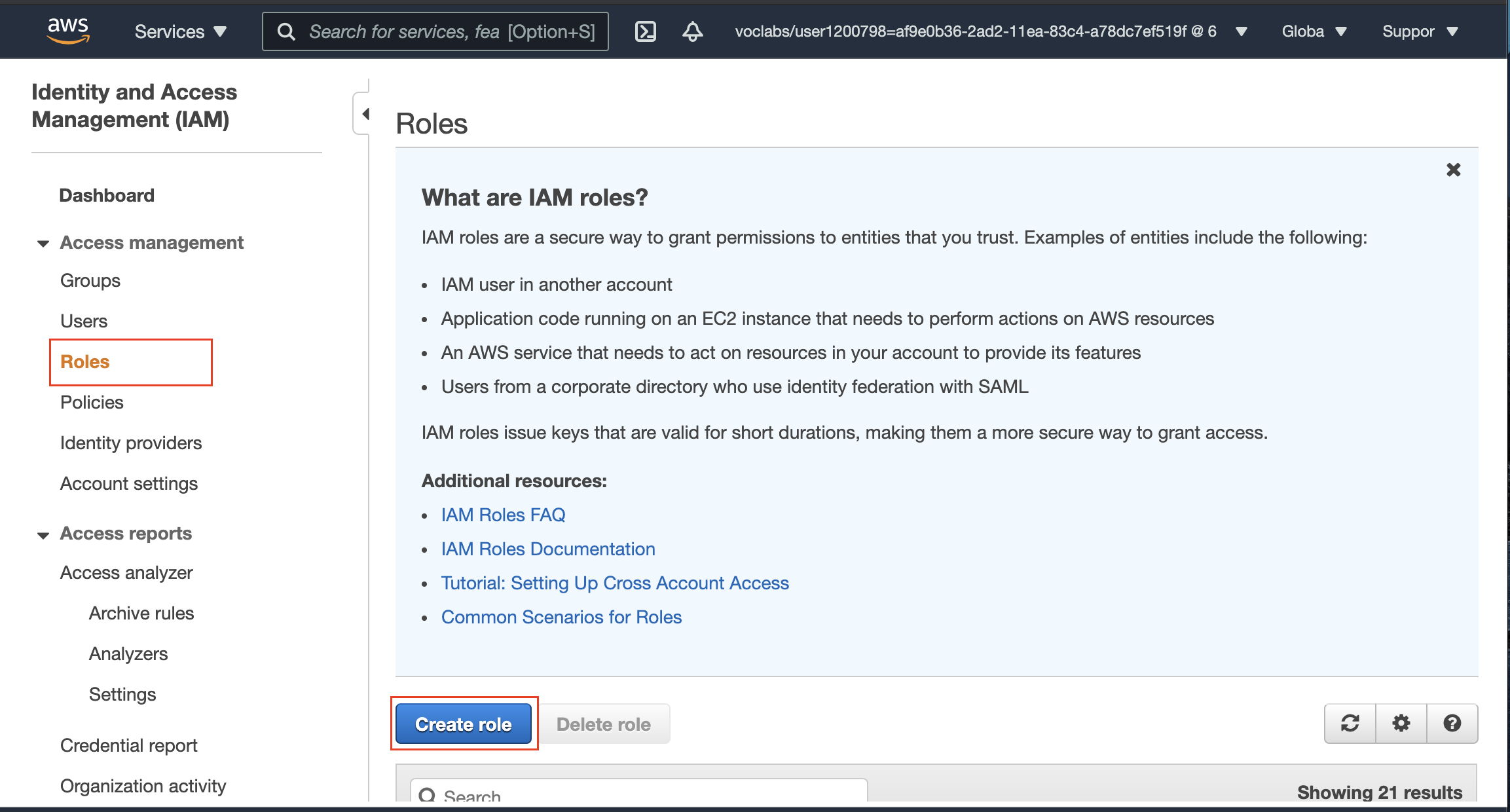
IAM Roles dashbaord
- In the AWS Service group as the trusted entity, and choose Redshift service.
- Under Select your use case, choose Redshift - Customizable, and then Next: Permissions.
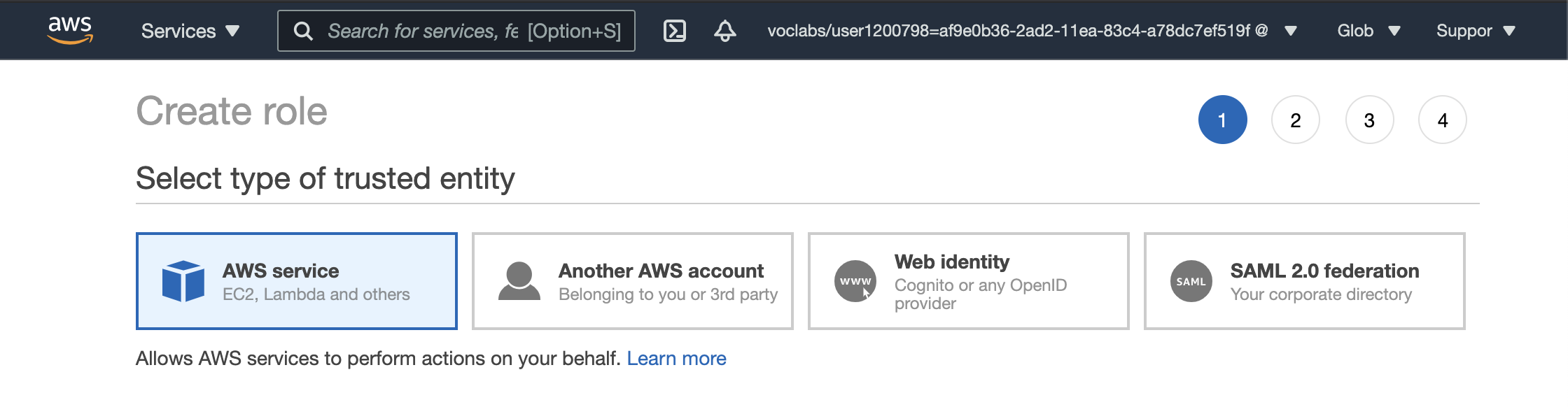
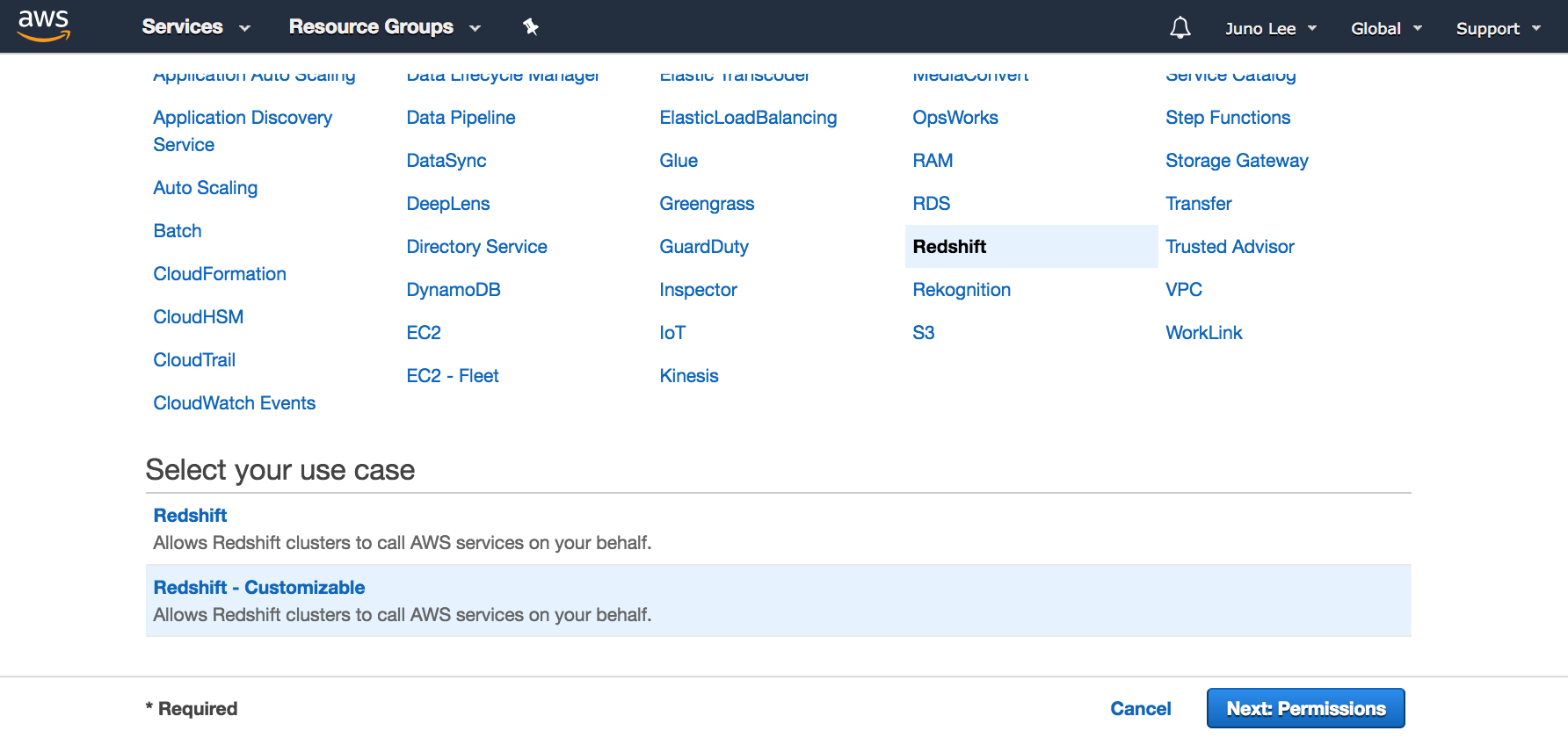
Select Redshift service, and Redshift - Customizable use case
- On the Attach permissions policies page, search for and select the AmazonS3ReadOnlyAccess policy, and then click on the Next: Tags button.
- Tags are optional. Click on the Next: Review button.
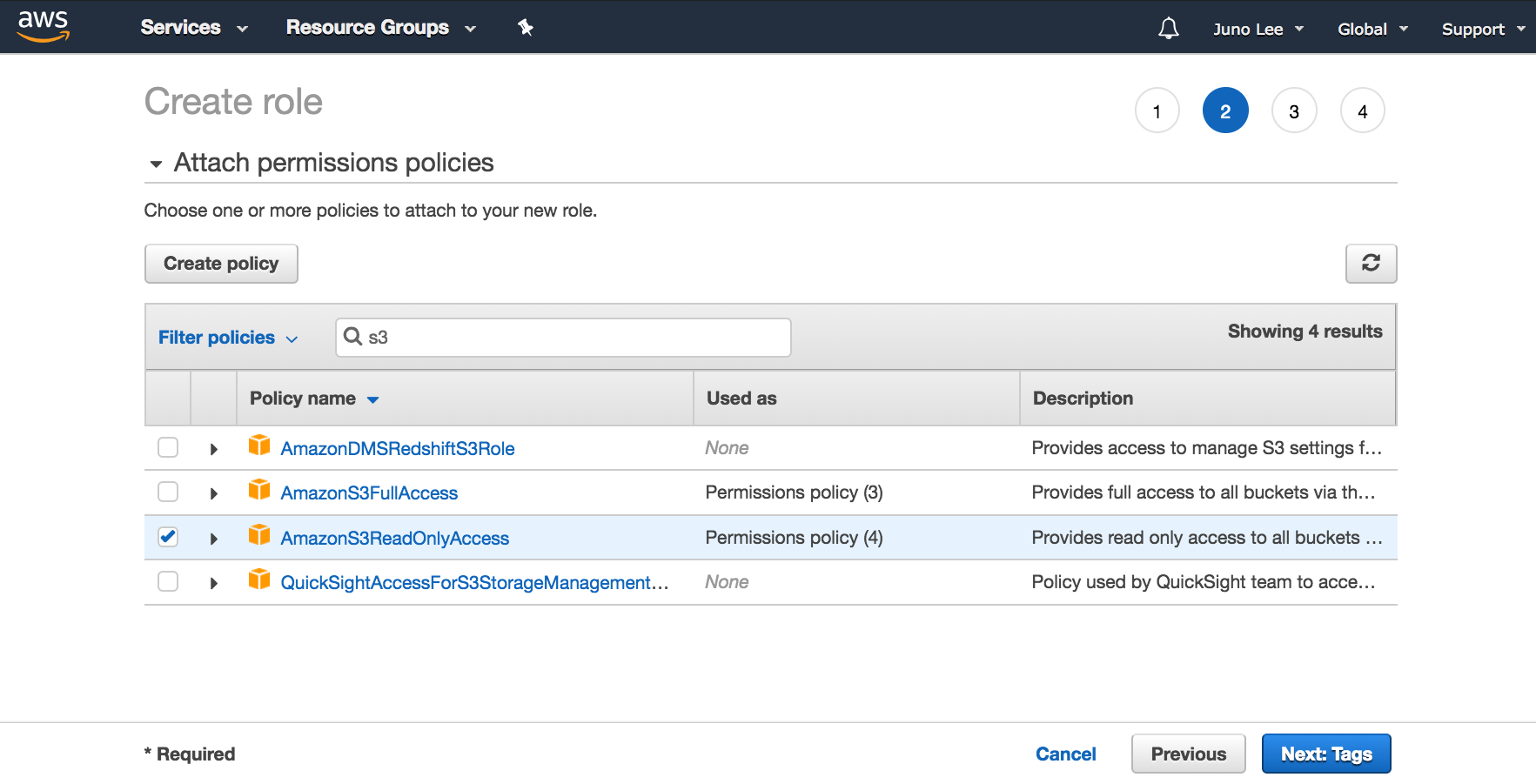
Select a policy to attach to the new role
- For Role name, enter
myRedshiftRole, and then choose Create Role.
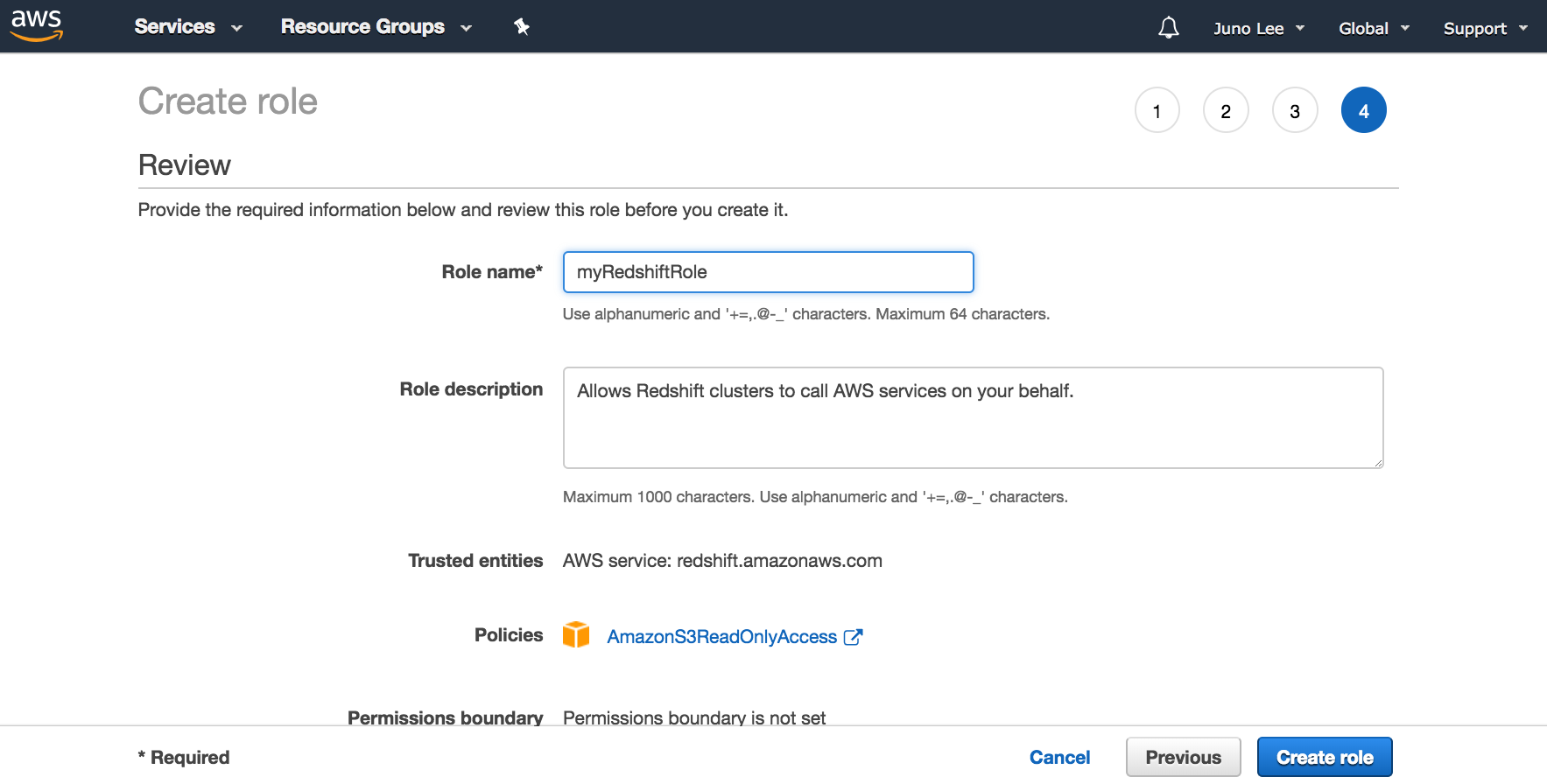
Provide role name and description
- You will see a success message when the new role will be created.
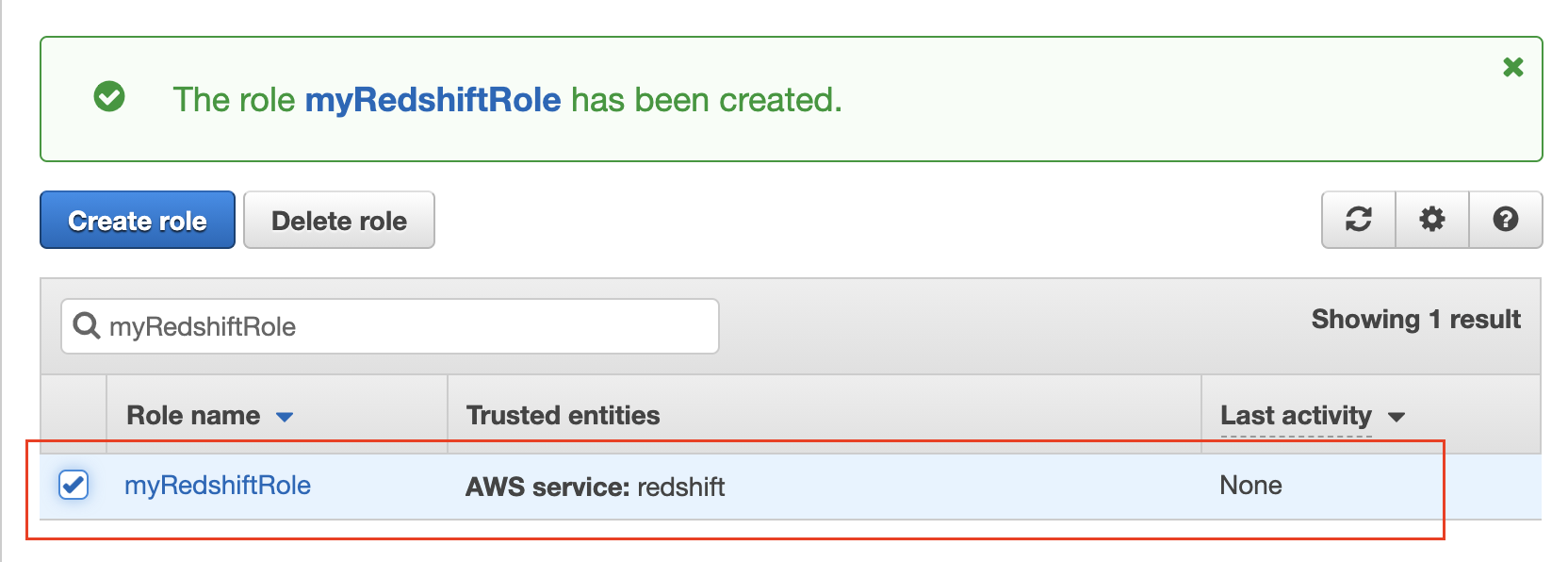
Role created successfully
That's great! On the next page, you'll learn to attach this role to a new/existing cluster